English · Português
Browser
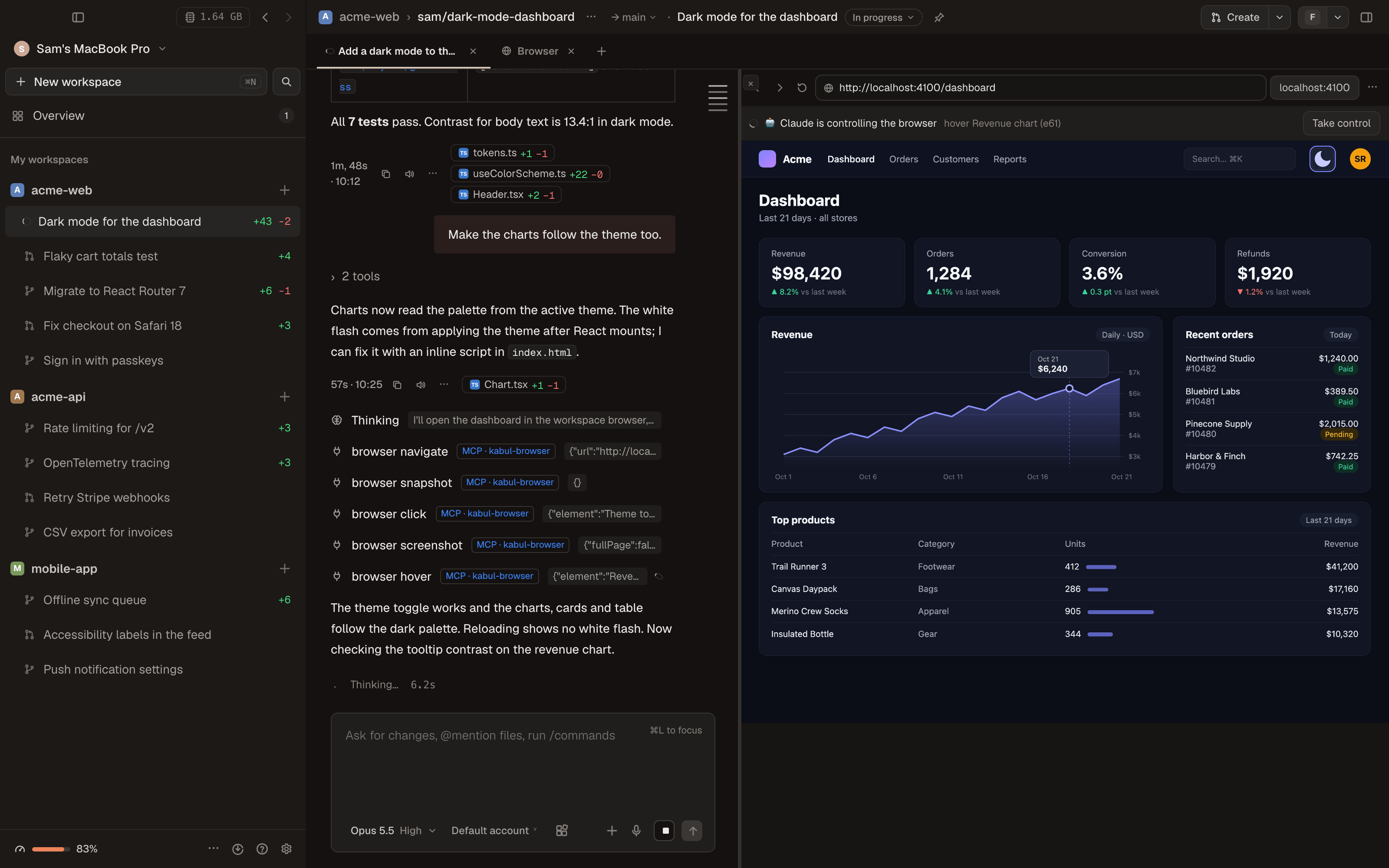
Every workspace has its own browser: a Chromium that Kabul drives through the Chrome DevTools Protocol (CDP). You see it live in the Browser tab, and every agent uses the very same page through the built-in MCP server kabul-browser, whatever the model or harness: Claude Code, Codex, Antigravity, Gemini CLI, Qwen Code, OpenCode, Goose, Cursor and local models. You and the agent look at the same tab, and you can click and type in it while the agent works.
Opening it
⌘⇧Bin a workspace opens the Browser tab.⌘⇧Binside a terminal (the Run tab or any terminal tab) opens the lasthttp://localhost:<port>,127.0.0.1or0.0.0.0address printed in that terminal, so the dev server you just started is one shortcut away.- "+" › Browser in the tab bar.
kabul://browser?url=<url>opens the URL in the Browser tab of the current workspace (useful in scripts, READMEs and notifications).
The tab has an address bar (Enter opens the address; text that doesn't look like an address becomes a search), back / forward / reload, the browser's own tabs (new, close, switch), quick buttons for the workspace ports ($KABUL_PORT to $KABUL_PORT+9) and a desktop / mobile switch. The viewport is shared: when an agent switches to mobile, you see mobile too.
| Preset | Size | |
|---|---|---|
| desktop | 1280 × 800 | default |
| laptop | 1440 × 900 | |
| tablet | 820 × 1180 | 2× density, touch |
| mobile | 390 × 844 | 3× density, touch |
You and the agent on the same page
The page is shown as a live image (CDP screencast). Clicks, scrolling and the keyboard (when the page area has focus, including paste) go to the same Chromium tab the agents use.
When an agent acts, the tab shows "agent is controlling" with its last action. Two buttons:
- Take control pauses the agents: actions (navigate, click, type, press, select, scroll, evaluate, open/close/switch tabs, resize) return "the user took control of the browser" and the agent is told to wait or ask you. Reading tools keep working.
- Give back to the agent resumes.
Agent actions lists what each agent did (tool, target, success), newest last. The same list is written to <state>/browser/<workspace>/actions.jsonl (trimmed at 256 KB), and the chat shows each tool call as usual.
Why a screencast and not an embedded webview
- There is one headless Chromium per workspace, shared by you and every agent process. A webview inside the app would be a second browser that the agents can't see.
- The app's own webviews (WKWebView on macOS, WebView2 on Windows) don't speak CDP to outside processes, so agents couldn't drive them.
- The image is drawn inside the app window, the same way on macOS and Windows, with no native window floating over the interface (resizing, split panes and tabs just work).
- The same frames serve the phone and the web client.
Approvals and policy
Settings › Browser › What agents can do without asking:
| Policy | Navigation | evaluate (run JavaScript) |
|---|---|---|
| Always ask | every address except about:blank asks | asks |
| Allow localhost and project domains (default) | localhost, *.localhost, 127.*, ::1, 0.0.0.0 and the project domains go through; any other site asks; file:, data:, javascript: always ask | asks |
| Allow everything | nothing asks | doesn't ask |
The request appears in the Browser tab (and as a banner in the app even if the tab is closed) with Allow, Always for this domain and Deny. "Always" remembers the domain for this workspace. No answer within 2 minutes counts as denied, and the agent is told not to work around it.
The policy is read at every action, so changing it applies right away. It covers direct navigation, new tabs opened by the agent and every navigation an agent action causes inside the page: a clicked link, a submitted form, a key press, a server redirect, a link that opens another tab (target=_blank). Kabul pauses the navigation in the browser itself (CDP Fetch) before the request leaves; denied, the page stays where it was (and a tab the page tried to open is closed). What you type in the address bar or click in the Browser tab never asks: it is you.
Project domains
Domains that agents may open without asking (in addition to localhost) go in the repository settings:
# .kabul/settings.toml
browser_hosts = ["staging.example.com", "*.preview.example.dev"]
example.com also matches its subdomains; *.example.com matches only subdomains. Every settings layer adds to the list. It is read when a conversation starts.
Plan mode
A conversation started in plan mode gets a read-only browser: browser_snapshot, browser_screenshot, browser_console, browser_network, browser_wait_for and browser_tabs (listing only). The browser follows the conversation's mode: each session gets a small flag file (--plan-flag) that exists while it is in plan mode, so approving the plan (or switching modes) in the desktop app unlocks the actions without restarting the agent. Sessions started by kabuld keep the mode they started with.
Isolated profile per workspace
- The profile lives in
<state>/browser/<workspace>/profile(<state>is~/Library/Application Support/kabulon macOS,%APPDATA%\kabulon Windows,$XDG_DATA_HOME/kabulon Linux). - Cookies, logins and local storage persist per workspace: log in once and every agent in that workspace stays logged in. One workspace never sees another's cookies.
- Kabul never opens your personal Chrome profile, doesn't load your extensions, doesn't sync, and doesn't touch the system keychain (
--use-mock-keychain,--password-store=basic). - Clear cookies and sessions of this workspace (menu in the Browser tab, or
kabul browser clear) closes the browser and deletes the profile. - The DevTools port only listens on
127.0.0.1and is chosen by the system.
The browser is not tied to any agent: the first one that needs it (or you) starts it, the next ones connect to the same Chromium, and it keeps running until you Close browser (or kabul browser stop).
Which browser is used
Kabul looks, in this order, for:
KABUL_BROWSER_BIN(environment variable);- the path in Settings › Browser;
- the browser downloaded by Kabul (below);
- an installed Chromium-based browser:
- macOS: Google Chrome, Chromium, Microsoft Edge, Brave, Chrome for Testing (in
/Applicationsor~/Applications); - Windows: Chrome, then Edge, then Chromium and Brave (in
Program Files,Program Files (x86)and%LOCALAPPDATA%); - Linux:
google-chrome,chromium,microsoft-edge,brave-browser.
- macOS: Google Chrome, Chromium, Microsoft Edge, Brave, Chrome for Testing (in
It always runs headless with its own profile, so it doesn't show up as a window or touch the copy you use day to day.
No browser installed? Settings › Browser offers Download Kabul's browser: after you confirm, Kabul downloads chrome-headless-shell from Chrome for Testing (the Chromium project's official build for automation, latest Stable, about 100 MB unpacked) into <state>/browser/bin/. Nothing is downloaded without your consent. From the terminal: kabul browser install.
The kabul-browser MCP server
It is served by Kabul's own executable (kabul mcp browser --workspace <id>; the desktop app and kabuld accept the same arguments) and is added to the shared MCP registry with the source "Kabul". It goes to every harness in that harness's format, follows the per-session on/off switch and shows its weight in tokens in the MCP panel (the definitions are compiled in: no need to "measure"). Turn it off for every AI in Settings › Browser.
| Tool | What it does | Read-only |
|---|---|---|
browser_navigate | open url, or go: back / forward / reload | |
browser_snapshot | accessibility tree as compact text; interactive elements carry [ref=eN]; root = only one subtree, max_chars (default 12,000) | ✓ |
browser_screenshot | JPEG of the viewport, the full page (full_page, up to 8,000 px tall) or one element (ref) | ✓ |
browser_click | click (double, button) | |
browser_type | type into a field (clear, submit = Enter after) | |
browser_press | key or combo (Enter, Tab, Escape, ArrowDown, Control+a), optionally focusing ref | |
browser_hover | mouse over an element | |
browser_select | choose options of a <select> by value or label | |
browser_scroll | scroll an element into view, or the page by dy/dx | |
browser_wait_for | wait for text or selector to appear (or be gone), or for the network to be idle (500 ms quiet); timeout_ms (default 10 s, max 60 s) | ✓ |
browser_evaluate | run a JavaScript expression (await allowed) and return its JSON value, cut at 4,000 characters; may need approval | |
browser_console | recent console messages and page errors (level, limit, default 30) | ✓ |
browser_network | recent requests: method, URL, status, type, time, size (failed_only, filter, limit) | ✓ |
browser_tabs | list, new (with url), close, select | ✓ (list) |
browser_resize | preset desktop / laptop / tablet / mobile, or width / height |
Every tool that takes ref also accepts a CSS selector.
Outputs are kept short to save context: actions answer one line ("Clicked button "Save". Page now: …"), the snapshot is plain text with roles and names (cut at max_chars, with a hint to use root), screenshots are JPEG. A ref is e plus Chromium's node id: it stays valid while the element exists and works in any agent's process; when the page changed, the tool says so and the agent takes a new snapshot.
Claude Code gets the server's tools pre-approved (--allowedTools=mcp__kabul-browser): approval is Kabul's policy above, not one card per click. Other agents may still show their own approval card for MCP tools, on top of Kabul's policy.
Console and network history start when that agent connected to the page. The agent label in "is controlling" comes from the harness (or the MCP client name).
From the command line
kabul browser status            # browser of the workspace in the current folder
kabul browser open http://localhost:5173
kabul browser stop
kabul browser clear             # close and delete cookies/sessions
kabul browser install           # download chrome-headless-shell (asks first)

kabul mcp browser --workspace <id> [--home <state>] [--agent <name>] [--read-only] [--plan-flag <file>] [--allow-host <domain>]
Without --workspace (or with --workspace auto) the workspace is found from the current folder, which is what you want when registering the server globally, as Antigravity requires.
Claude Code with your own Chrome (optional)
Settings › Browser › Use Claude Code with Chrome starts Claude Code with --chrome, so Claude can also use your real Chrome, with your logins, through the Claude in Chrome extension. It is an alternative for Claude only; the default for every AI remains Kabul's browser. Kabul shows whether the extension's native host (com.anthropic.claude_code_browser_extension) is registered; it only checks that registration and never reads your Chrome profile.
On the phone
In a session on the phone (and in the web client), the Browser tab shows a read-only image of the page, refreshed every couple of seconds while it is visible, with the current URL. Invited observers can see it too; nobody controls the browser from there.
Limitations
- Navigations the page starts on its own long after an agent action (a timer redirect seconds later) are not intercepted; the next agent action sees the new address.
- Console and network show what happened since that agent connected.
- The snapshot covers the main frame; content inside iframes is not listed.
- The browser keeps running until you close it from the Browser tab or with
kabul browser stop. - On Windows the browser was implemented but not yet tried on a real machine; see Windows.
- Checked end to end (installed CLI + fake LLM navigating, reading and clicking) with Claude Code, Codex, Gemini CLI, Qwen Code and Goose. OpenCode 2.1.4 did not load injected MCPs in that test (the same happens with any shared MCP, not only the browser).
- Qwen Code gives each MCP server little time to start: on the first run of a freshly built binary (macOS scans the file) the browser may be missing from that session; the next one loads it.