English · Português
Cloud and mobile
Your agents don't need you at the desk. Kabul gives you three ways to work away from it:
- Your phone, with every session of your computer live, through
kabuld, Kabul's own server; - other machines of yours (a desktop at home, a server), driven from the same app;
- the provider's cloud, for agents that offer one.
The phone app (iOS and Android)
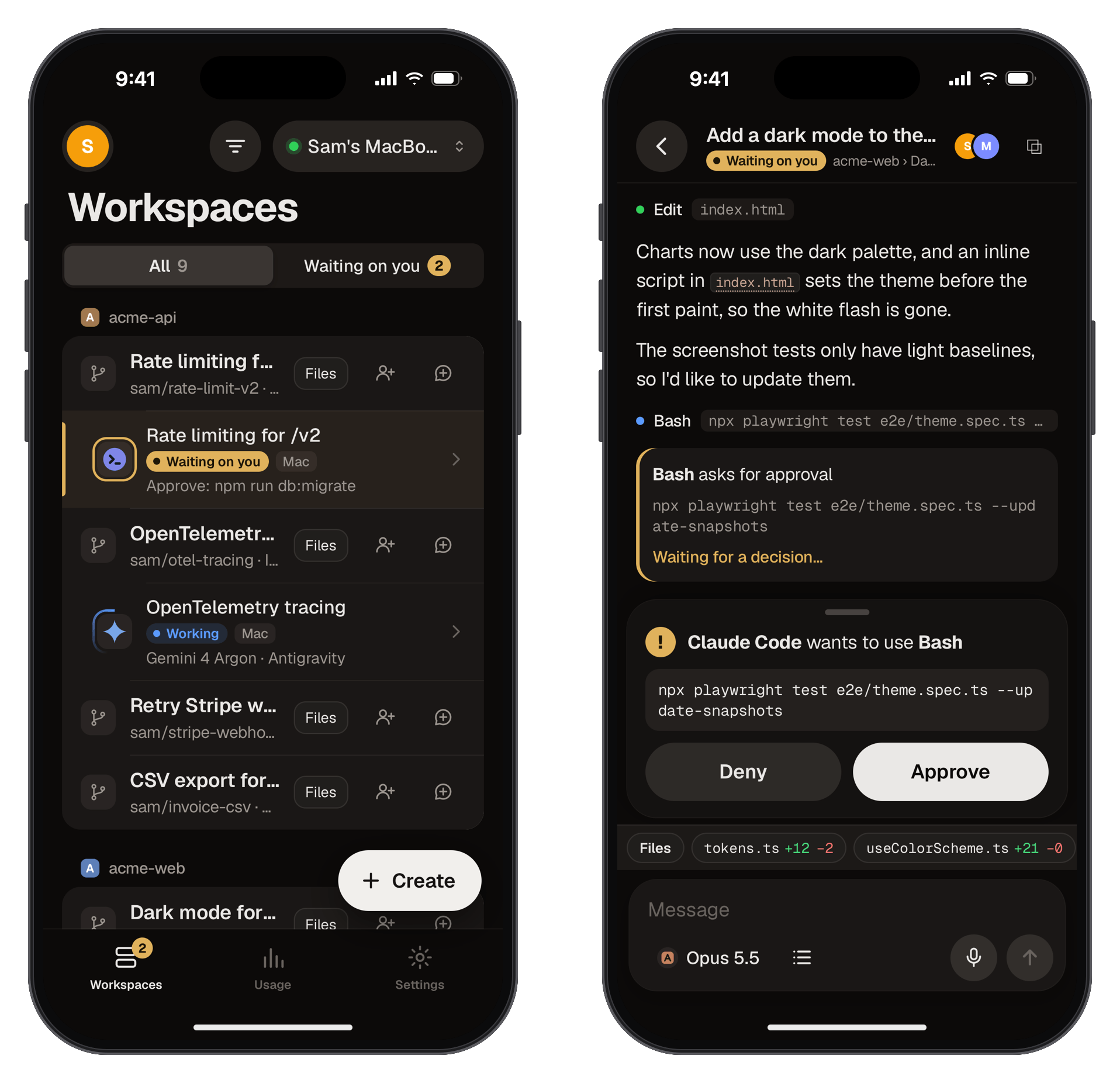
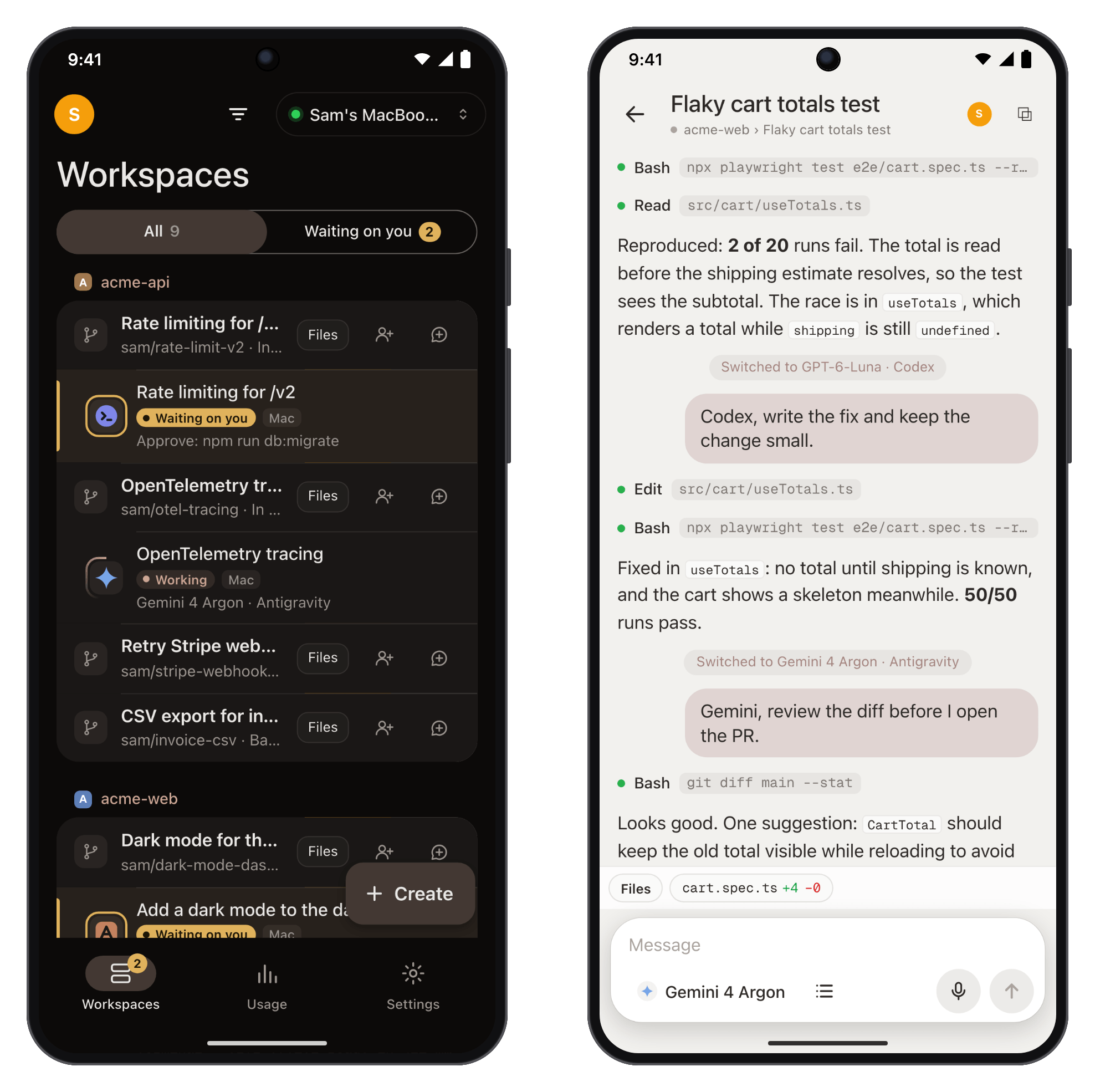
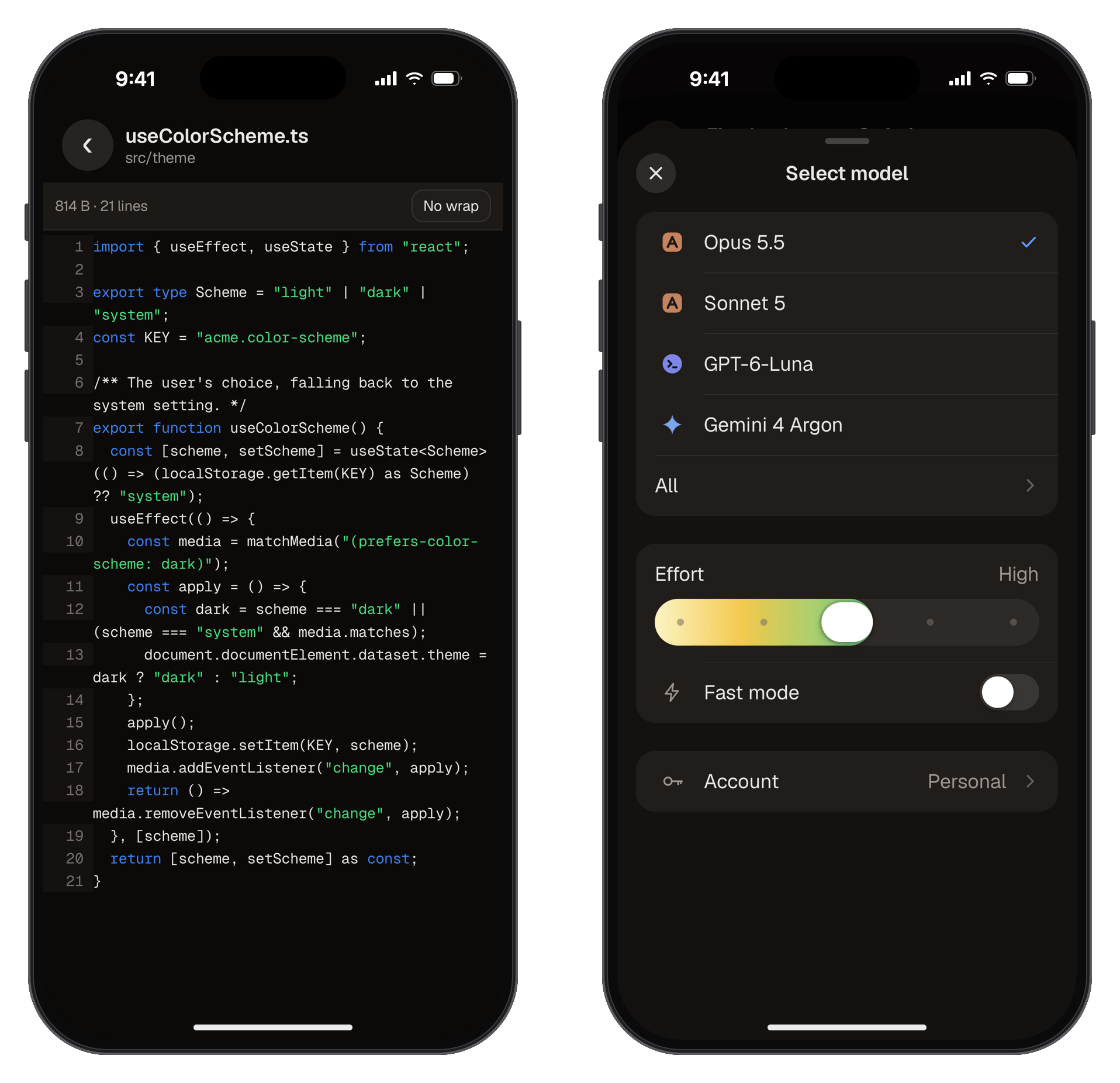
The phone app is a PWA (an app you install from the browser) served by your own computer. There is no Kabul account and no Kabul server in between: the phone talks to your computer over your Tailscale network.
Pair your phone
- Install Tailscale on the computer and on the phone, signed in to the same account.
- In Kabul: Settings › Phone & remote › Turn on. The server starts with the app from then on.
- Click Enable HTTPS. It runs
tailscale servefor Kabul only, visible only inside your tailnet. The phone needs HTTPS to install the app, receive notifications and use the microphone.- Your tailnet must issue certificates: in the Tailscale admin console, turn on MagicDNS and HTTPS Certificates. Kabul checks this first and shows the steps if they are missing; it never changes your tailnet settings.
- Scan the QR code with the phone's camera, type your name and tap Pair. The phone gets its own key.
- Install it: on iPhone, Safari › Share › Add to Home Screen; on Android, Chrome › Install app.
- In the app's Settings › Notifications, turn on Notify me when an agent is waiting on me.
Without HTTPS (http://100.x.y.z:7777/m/) the list, the terminal and the chat still work, but the phone won't install the app, send notifications or allow dictation.
What you can do on the phone
- Workspaces: every workspace grouped by repository, with its sessions. Each session shows the agent, where it runs and its status; a ring spins while the agent works and the row lights up when it waits for you. The Waiting for you filter gathers everything that needs a decision. Swipe to stop, archive or pin.
- Chat: the same structured chat as the desktop, with tool cards, the queue and dictation. Approvals come up as a sheet (Deny / Approve); plan mode shows the plan with Adjust and Approve and run.
- New workspace: pick the repository, describe the task, choose the model and where it runs.
- Model picker: favorites, every provider, local models, effort and account. Switching inside a chat keeps the conversation, as on the desktop.
- Live terminal of any session, including agents started outside Kabul's chat and plain shells, with a key bar (esc, ⌃C, tab, arrows, Approve, Deny) that sends the right key to each agent.
- Files: the workspace tree with search, Changes (uncommitted, commits, all) as a narrow diff, and previews for code, Markdown, images, SVG, PDF, video, CSV and JSON. Select lines and Ask in chat.
- App preview: open the app the workspace is running (its reserved ports) through an authenticated proxy, on a separate address from Kabul's.
- Usage: spend, tokens and limits per provider and account.
- Settings: this computer, paired devices (revoke any), account defaults, theme and notifications.
The interface follows the platform: iOS style on iPhone, Material 3 on Android (with the system back gesture), from one codebase.
Not in the stores yet
Today the phone app is a PWA. Store builds for the App Store and Google Play, from the same code and with native push, are on the roadmap.
Sessions started outside Kabul
The owner also sees Outside Kabul: agents running in other terminals and recent sessions of the CLIs (Claude Code, Codex, OpenCode, Antigravity). Continue opens a chat in the workspace of the same folder, resuming that same session.
Other machines
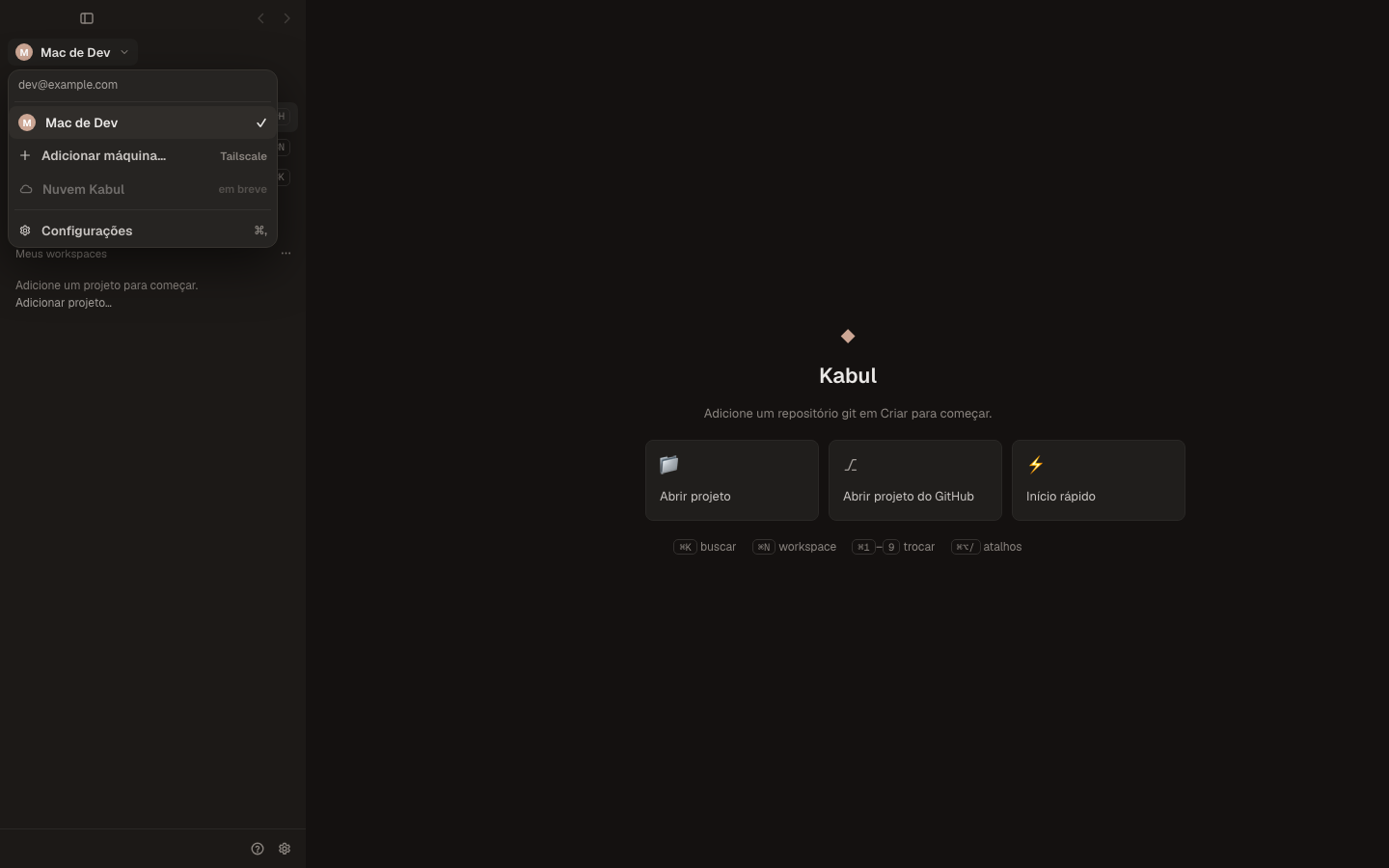
Run kabuld on another computer and drive it from your desktop app: Settings › Phone & remote › Other machines, paste the pairing link of that machine (the same link as its QR) or use Search the tailnet. The machine joins the picker at the top of the sidebar (⌃1 … ⌃9), and the whole app then talks to it.
A server without the app
On a machine without the desktop app (a server, a VM):
cargo build -p kabuld --release
(cd apps/web && npm ci && npx vite build)
./target/release/kabuld --web apps/web/dist --pair
--pair prints a pairing link valid for 5 minutes. Variables such as KABULD_PORT (default 7777) and KABULD_NO_TAILSCALE are listed in the technical reference.
The provider's cloud
| Agent | What Kabul does |
|---|---|
| Claude Code | Provider cloud (Claude) in the + tab menu starts a cloud session for the workspace. The tab shows its status, opens it on claude.ai and brings it back to your machine (teleport). Mirror on phone/claude.ai (workspace ··· menu) keeps a local session running here and visible in the Claude app. |
| Antigravity | Remote control (--remote-control) works the same way as Claude's mirror. Cloud runs: to be confirmed. |
| Codex | Cloud tasks: to be confirmed. |
| Everyone else | No provider cloud, but every session is visible and usable from the phone through kabuld. |
The Panel in the sidebar lists every session: terminal sessions with the detected agent, cloud sessions and imported ones, with where each one runs.
Security in short
kabuld listens only on localhost and on your tailnet, never on 0.0.0.0 or the open internet. Pairing codes are single-use and expire in 5 minutes; each device gets its own key, stored only as a hash in the system keychain, and can be revoked at once. More in Security.