English · Português
Usage, costs and limits
Kabul keeps track of what your agents spend and how close each account is to its limits.
Where the numbers come from
- Every turn Kabul runs (desktop app, the server used by your phone,
kabul serve): tokens (input, output, cache read and written), duration and cost when the harness reports it. Claude Code reports cost; Codex and Gemini do not, so their turns count tokens only and dollar totals are a lower bound. Only metadata is stored (provider, model, account, workspace, session), never prompts, code or paths. - The agents themselves: Claude Code sends its 5-hour and weekly windows in the stream (
rate_limit_event, every turn); Codex sendsaccount/rateLimits/updated, and Kabul also asks its app-server (account/rateLimits/read) for every Codex account you added. - Your Claude subscription, straight from Anthropic: for every Claude account added to Kabul, Kabul uses the sign-in Claude Code already keeps (on macOS, the
Claude Code-credentialsKeychain item; for an isolated account, the item for itsCLAUDE_CONFIG_DIR; on Linux/Windows, the.credentials.jsonfile) and asks for the subscription usage: 5-hour session, week, per-model week (Opus, Sonnet…) and extra usage when it's on. The token is read at the moment of each check and is never stored or logged. If the sign-in expired or was rejected, the block says "sign in to Claude Code again": Kabul doesn't renew the sign-in by itself (Claude Code does that when it runs). - CodexBar CLI, if installed (CodexBar, MIT):
codexbar usage --format json --statusadds more providers, provider status and credits. Kabul looks forcodexbaron the PATH and for the CLI inside the app in/Applicationsand~/Applications; if only the Homebrew link to a removed app is left, "Sources" says "CodexBar not found (the link points to an app that was removed)". Turn it off in Settings › General.
Turns live in usage.jsonl and limits in usage-limits.json, both in Kabul's state folder, each with a schema_version.
The Usage tab
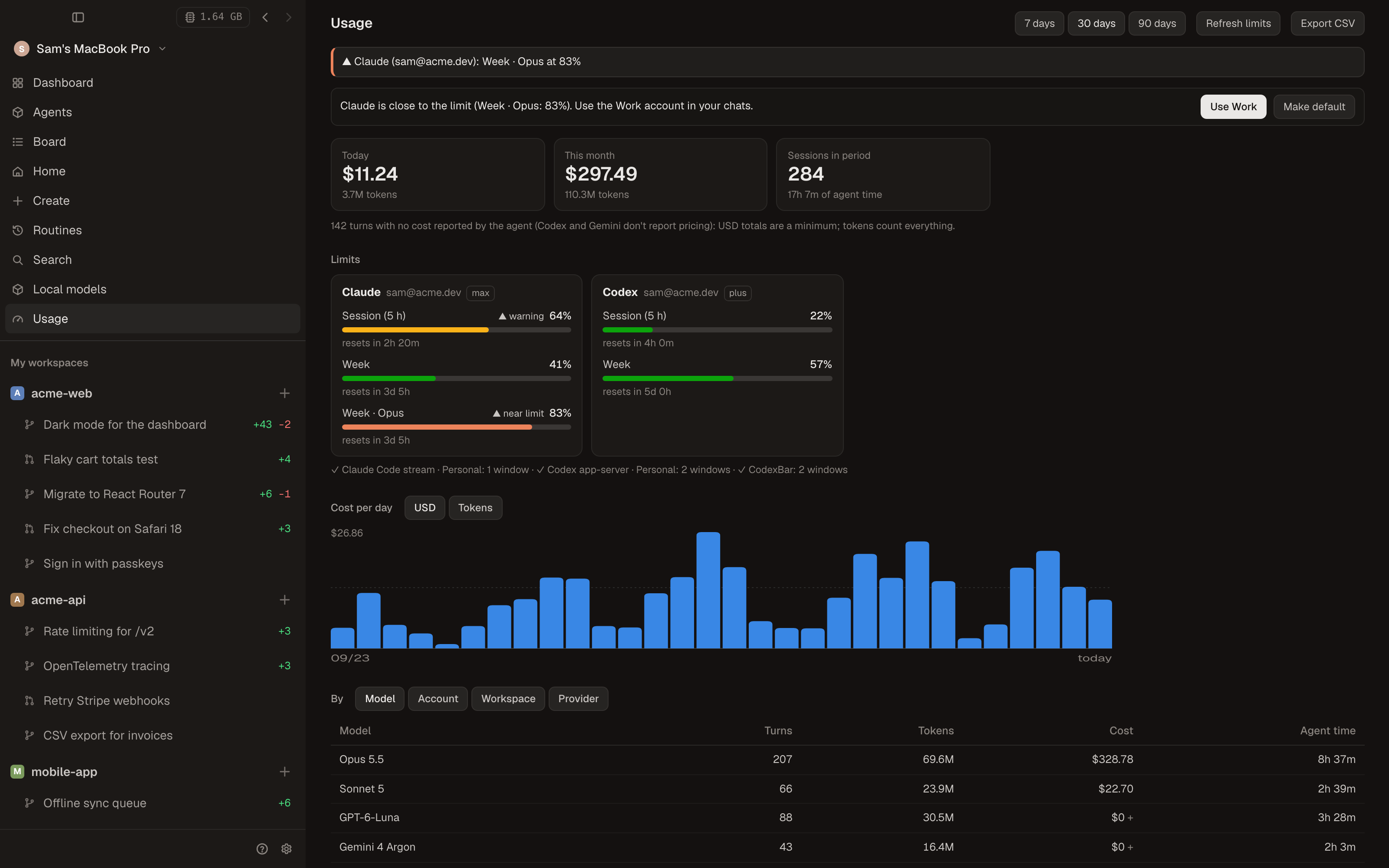
Sidebar › Usage (also on the phone, from the session list):
- spend and tokens today and this month;
- one block per provider/account with a bar per window (session, week, month) and the countdown to the reset. A provider/account in use with no known limit yet still shows up, with "No limit data yet" and how to connect it (for example, "sign in to Claude Code with this account");
- Sources: how each read went (Claude subscription per account, Codex app-server, CodexBar, agent streams);
- a per-day chart (dollars or tokens) and tables by model, account, workspace and provider;
- sessions with duration, turns, tokens and cost (click to open the workspace);
- Export CSV (one turn per line; saved to Downloads on desktop).
Alerts and switching before you hit a limit
Settings › General: warn at a percentage of any window (80% by default) and set a daily/monthly budget. Kabul notifies once per window.
When a window passes the threshold, the Usage tab suggests another account of the same provider (if one has room) or another provider. Use applies it to the open conversations of that provider on the next message, through the same path as switching model or account: same conversation, same branch, with a handoff.
Menu bar (tray)
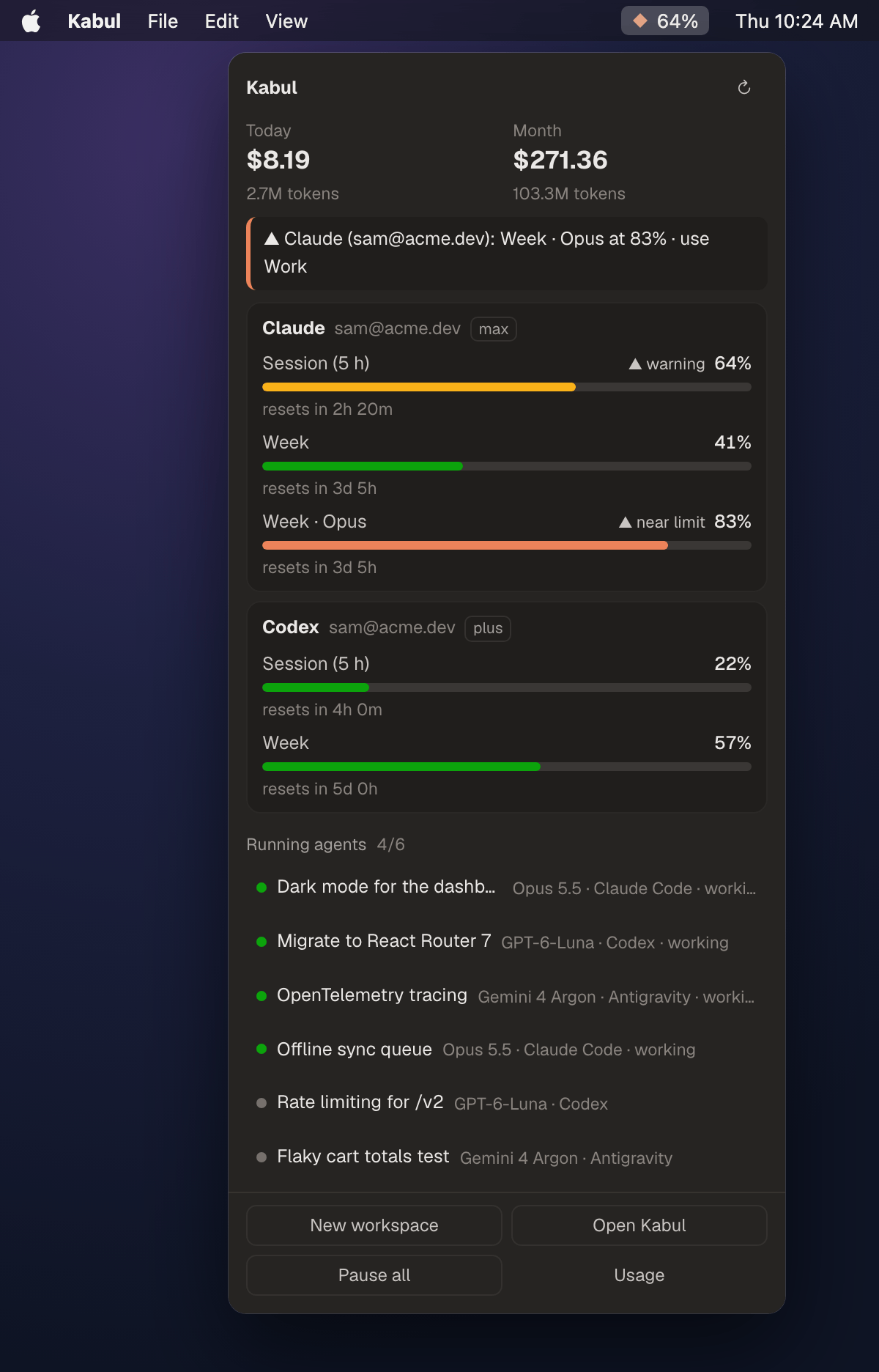
An icon in the macOS menu bar (system tray on Windows) shows your AI limits. Click it for a popover with the same blocks, today's and this month's spend, agents running now (click to open the workspace) and quick actions: new workspace, open Kabul, pause all, usage. Right click opens a menu with the same actions. Turn it off in Settings › General › Menu bar icon.
What the icon shows
In the Usage tab, section In the menu bar (the same choice is in Settings › General, right below "Menu bar icon"):
- Automatic (the tightest): the two limits with the highest usage, from any provider/account (the default);
- Choose (up to 3): tick up to 3 limits (provider, account and window) in the list, or click the Show in the icon pin on any window of a block in the Usage tab. Pinning switches to manual; removing the last pin goes back to automatic. A chosen limit with no reading right now shows as an empty track;
- Style: bars, percentage, bars + % (the default) or icon only;
- Show today's spend: today's spend next to the icon.
Changes apply right away. On macOS the percentages and the spend show as text next to the icon; the Windows tray has no text next to icons, so everything goes in the tooltip (hover the icon). The choice lives in app-settings.json (tray_icon, from schema_version 2 on).