English · Português
Quick start
From zero to a pull request written by an agent, in five steps. You need Kabul and at least one agent CLI installed and signed in (see Installation).
Interface language
Kabul follows your system language (English or Portuguese). To change it, go to Settings › General › Language. Shortcuts are the same in both.
1. Add a project
Press ⌘N and open the project picker:
- Open project: a local folder that is a git repository;
- Open project from GitHub: pick a repository from your account or paste a URL; Kabul clones it with your GitHub CLI login;
- Quick start: a new folder with
git init, a README and a first commit.
Kabul never changes your main checkout. Every task gets its own worktree next to it.
2. Describe the task
Type what you want to work on and press ↵. Kabul:
- creates a git worktree on a new branch (
<your GitHub user>/<city>); - copies your
.env*files (and anything listed in.worktreeinclude); - runs the repository's setup script, if there is one;
- sends your message to the agent.
⌥↵ adds the task to the backlog instead of starting it.
3. Pick the model
⌘/ opens the model picker: Claude, GPT, Gemini, Qwen and your local models side by side, with effort level and account. Kabul runs each model in the harness that suits it (see Agents and harnesses). You can switch at any time, even to another provider, without losing the conversation (see Switching model or account).
4. Steer and review
- Approve a tool call with
↵, always allow it with⌘↵, deny with⌫.⇧⇥toggles plan mode. - Mention files with
@, run commands with/, attach files with⌘U, dictate with⌃⇧D. - The right panel (
⌘⌥B) shows the changes. Open a file to see the diff, comment on a line and send the comments to the agent. - Every message you send records a checkpoint; restore one from the message or from the Checkpoints tab.
5. Ship
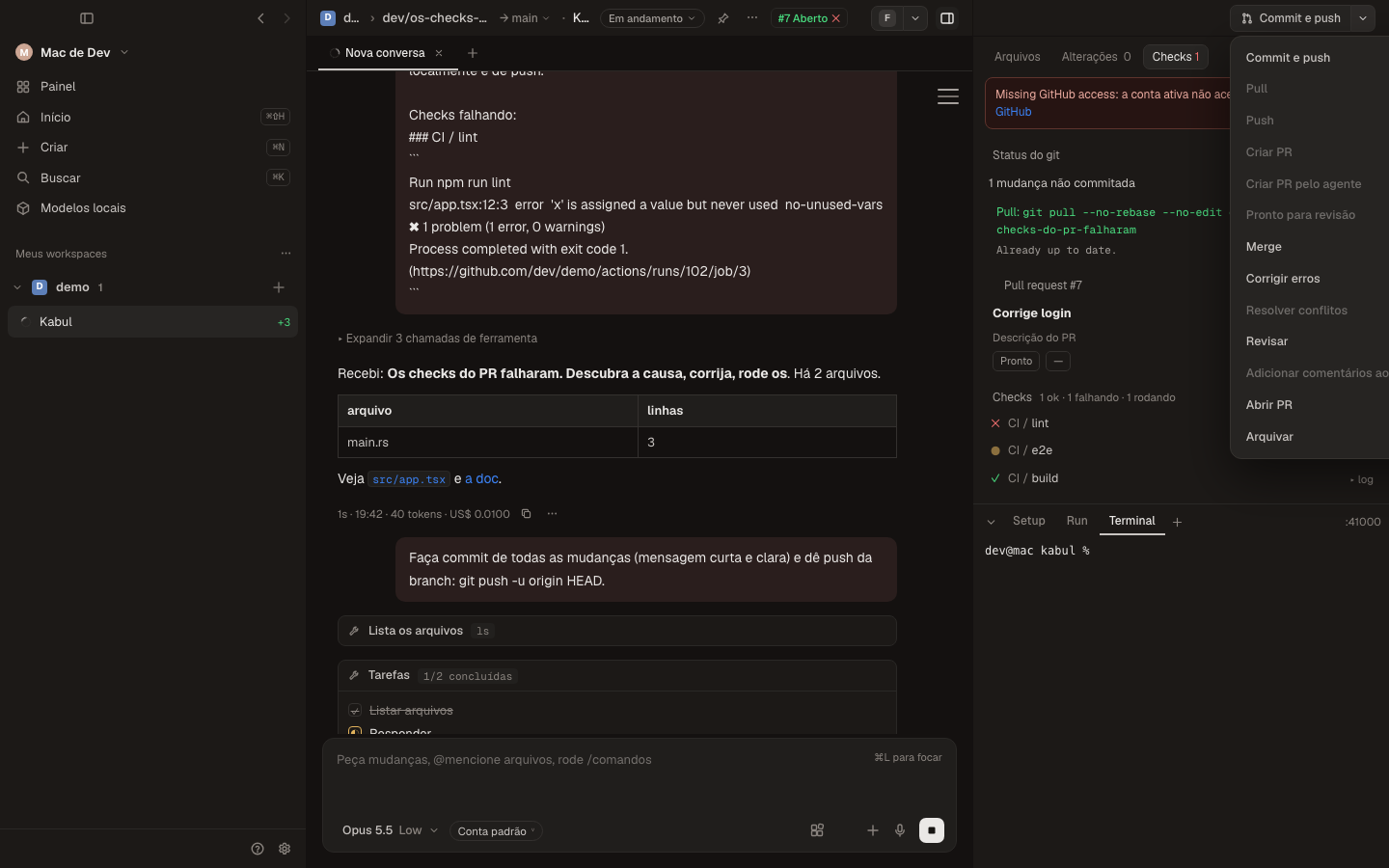
The git button follows the state of the branch: Create PR (⌘⇧P), Commit and push (⌘⇧Y), Pull (⌘⇧L), Fix errors (⌘⇧X, sends the failing check logs to the agent), Merge (⌘⇧M) and Archive (⌘⇧A).
Next
- Run several workspaces at once: each one is independent, with its own ports and terminal.
- Pair your phone: Settings › Phone & remote (see Cloud and mobile).
- Invite a friend into a workspace (see Collaboration).
- Learn the vocabulary: Concepts.